How To Repair Sd Card Or Pendrive


Pen drive or SD card gets corrupted/damaged
Almost every computer user has faced this problem: pen drive or SD card gets corrupted or damaged. An age old problem. But dealing with or repairing corrupted pen drive or SD card is quite a tedious task. When searching online, you might found many other computer users also face kinds of similar SD card error like “My pen drive is corrupted for no reason” or “My SD card is not working suddenly.” So we spent several days comprising of some different methods to help you.
Find a proper method to repair corrupted pen drive or SD card
As for how to fix a corrupted USB or SD card, there are always many methods you can have a try. But before that, you had better connect your SD card or pen drive to another computer to check if it is the computer that causes the issue. Or it could be possible that the port itself is damaged which is blamed for the corrupted pen drive, so try another different USB port. If no problem is found, then you need to consider the following methods to repair the corrupted device.
Method 1: Fix the corrupted SD card by formatting it
Formatting is always the first and foremost solution that most computer users come into mind when trying to repair corrupted SD cards. Moreover, they would go for File Explorer or Disk Management to format the disk, but sometimes the formatting process won’t go smoothly, even raising some new error like Windows was unable to complete the format, or Format volume is greyed out.
So what else you can do to repair the corrupted disk? Maybe you can think about using CMD. This process involves Windows command prompt which is commonly known as CMD. Therefore, you have to enter some CMD commands to forcefully format your corrupted pen drive/SD card. Below is the detailed guide.
First of all, open the CMD window: click the Start button, input “cmd” in the search box, right-click Command Prompt, select “Run as administrator”.
Then type the following command and press enter after each.
Diskpart
list disk: a list of all the storage devices connected to your computer will be displayed.
select disk <the number of your disk>: (example: select disk 2).
Cautions: Make sure you enter the disk number correctly. Otherwise, you may format your internal hard drive.
Clean
create partition primary
active
select partition 1
format fs=fat32.
The corrupted SD card can be forcefully formatted in a few minutes. Don’t exit the CMD window until the formatting is completed.
Method 2: Repair a corrupted flash drive without formatting (check& fix the bad sectors)
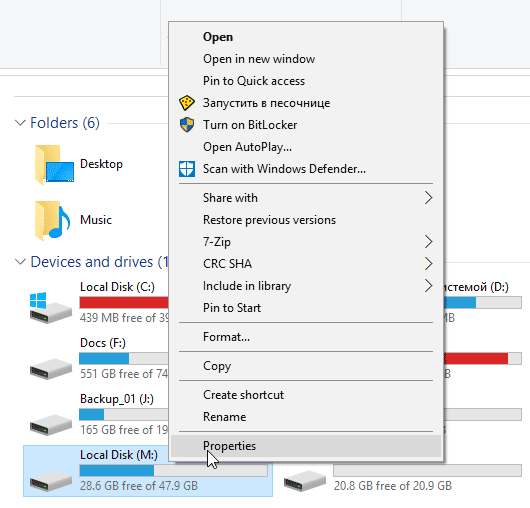
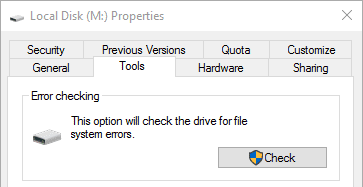
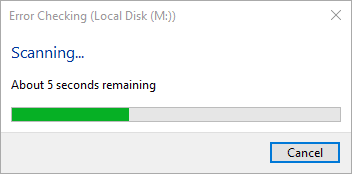
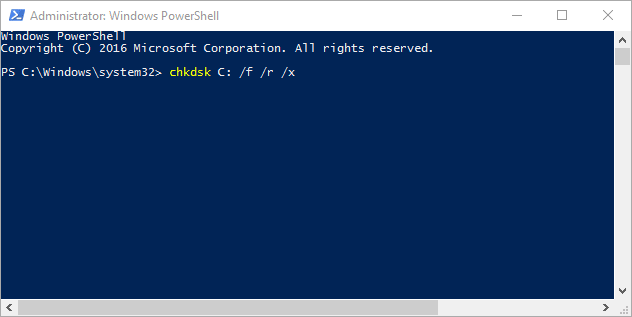
If directly formatting the corrupted drive is the last method you will try since it erases everything important, then you can check whether there are some bad sectors on the pen drive or SD card, then fix it. Also, you could run the CHKDSK to check the disk error, but if the command prompt isn’t your thing, please attempt an SD card repair tool called AOMEI Partition Assistant, that is available for Windows 10, Windows 8.1, Windows 8, Windows 7, Vista, XP.
Check bad sectors of partition and fix it
(1) Download the freeware. Install and run it. Right click a partition of the corrupted disk and choose “Check Partition” under “Advanced” tab.
(2) Then select the way of checking errors to perform and click “OK”, as you can see from the following screenshot.
In this way, you can repair corrupted pen drive or SD card much easily and more effectively than CMD.
A little Advice
With the increasing popularity of pen drive or SD card, most computer users would like to store their important data, like photos, music, working files, study stuff and more on such storage device. But many error might occur for no reason, such as USB flash drive showing 0 Bytes. Some of these error might threaten the security of the files. So it is wise of you to develop a habit of making a schedule files backup
Please Like My Post To Keep Supporting